
The channel has the guide to the Time Off module. Albert Cabedo installs it in the demo and leaves it ready to use: types, allocations, requests and the team calendar. The separate August Excel sheet becomes unnecessary if the balance lives in Odoo.
Webinar from July 3, 2026, about 38 minutes. It complements Attendance (time clock, mandatory in Spain). First things first: have employees. Without an employee record there are no days to allocate.
the full video
workflow and questions
working days in the demo
Albert: “I make it up”
balance after 5 days in June
figures from that database, not yours
The module and the employee
Install Time Off. Icon: umbrella. Then the employee. The Odoo user is a separate record. They can be linked; they are not the same thing.
Someone who never logs into Odoo can still be an employee. Someone who requests time off from the dashboard does need a user. The link is set in the record's Settings. In the demo: employee “Paco León” linked to user “Marcos León”. Albert also shows his Contaldia record.
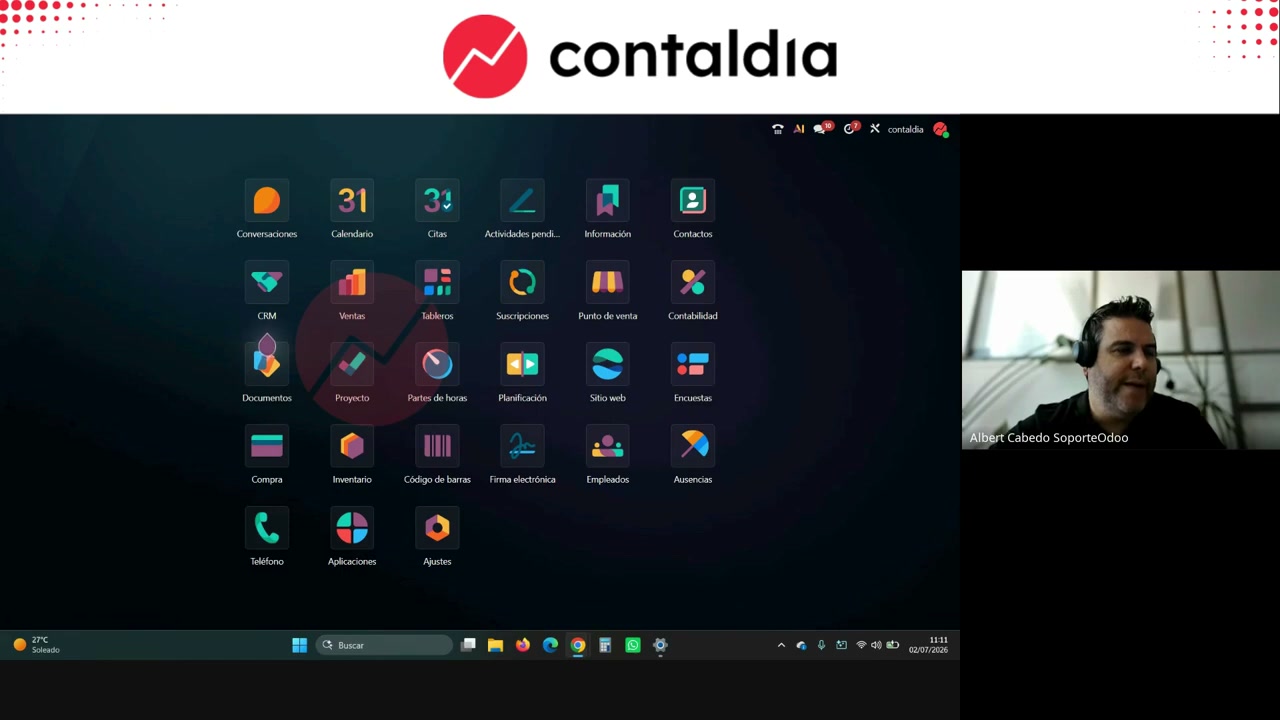
Module installed in the demo. Umbrella icon.
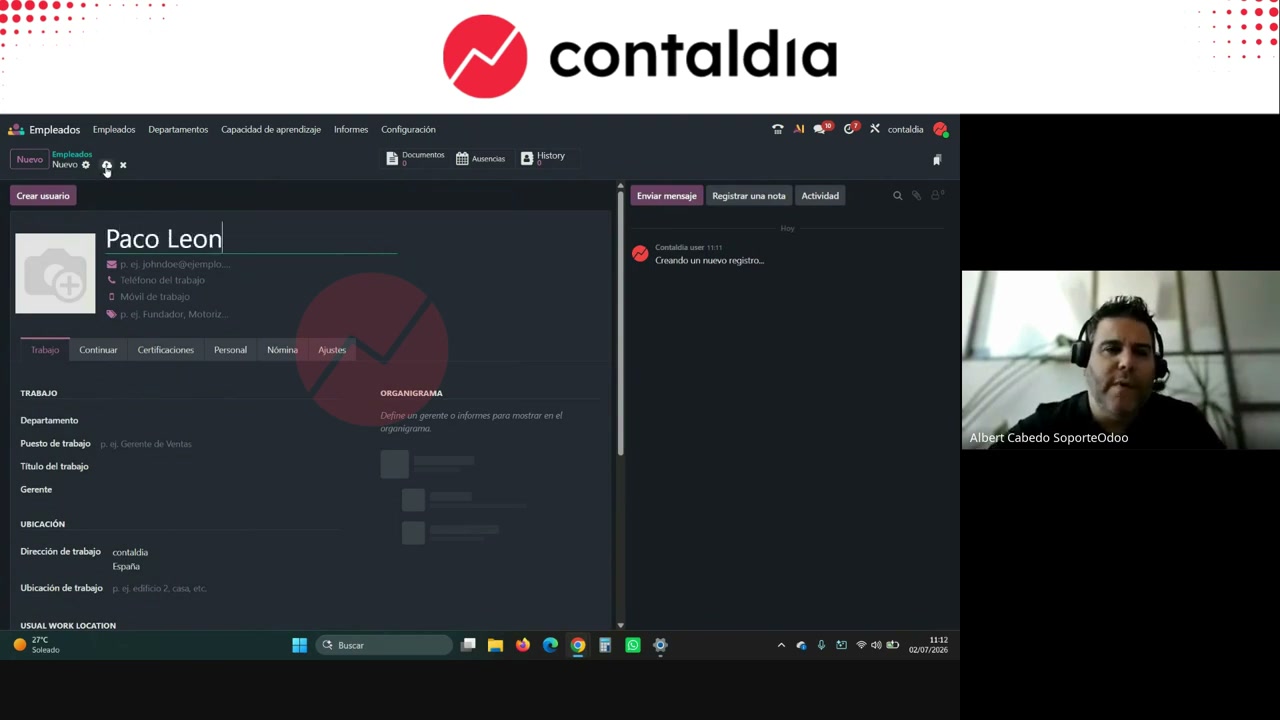
The record holds personal details, weekly hours, email, schedule, and whether they work from home or the office. The user is linked separately. Menus that appear: Dashboard, Overview, Management, Reporting, My Time Off, My Allocations and Configuration.
Configuring the type (using what Odoo already provides)
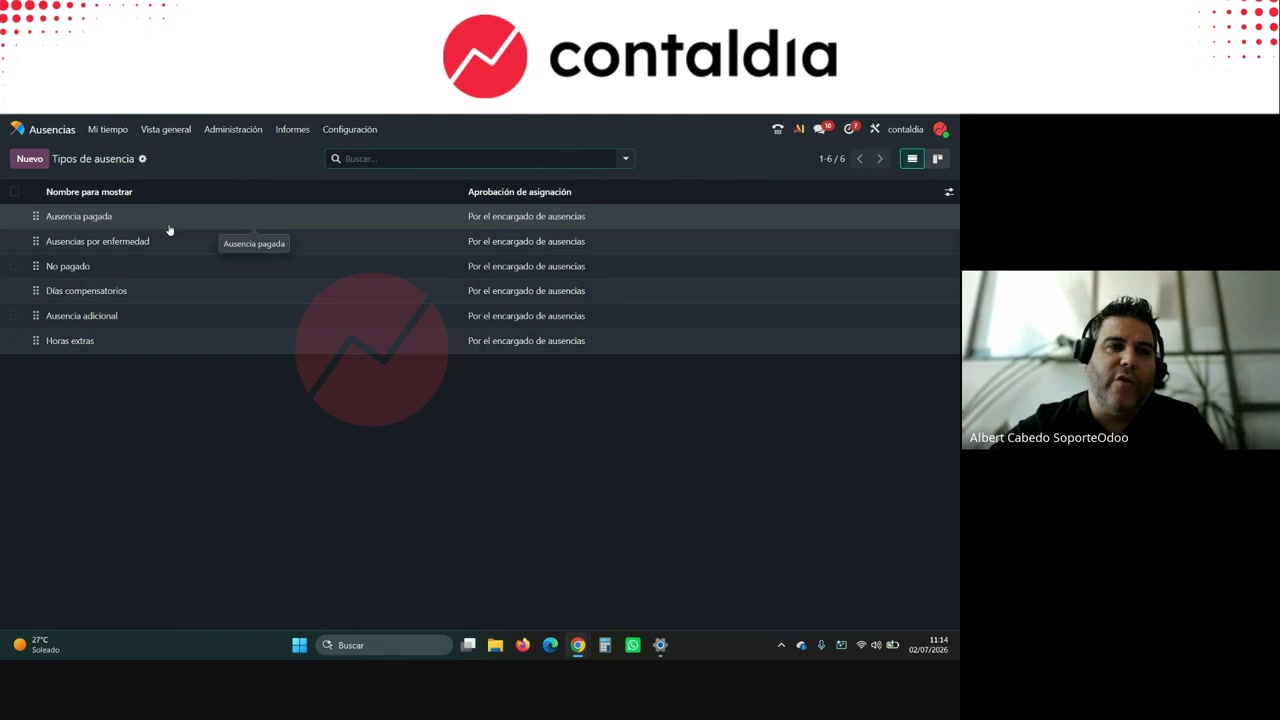
Types already exist once it is installed. Paid time off is vacation. Unit: hours, day or half day. For vacation, full day. Count as worked time or as time off: for vacation, time off.
Notify one or several people (vacation HR is not the same as IT HR). Approval: self-approve; absence manager; employee's approver; both. In the demo: employee and absence manager.
Albert leaves the default: requires allocation. He doesn't open the "unlimited" floodgate. In the demo it doesn't enable requests above the quota. Also available: negative limit, ignore public holidays, hide on dashboard, supporting document, color and icon.
Sick leave has no quota: nobody decides when they are sick. Supporting document (CUAP / CAP / outpatient clinic / family doctor). By default it comes hidden on the dashboard.
Unpaid: hours, full day or half day. No allocation. Example from the video: the children's end-of-year school event in the afternoon. Compensatory days come in the pack. Overtime too; Albert doesn't put it here: at Contaldia it comes from Attendance. He quotes "fewer than 15–20 a year" as his own practice, not as a rule of the module.
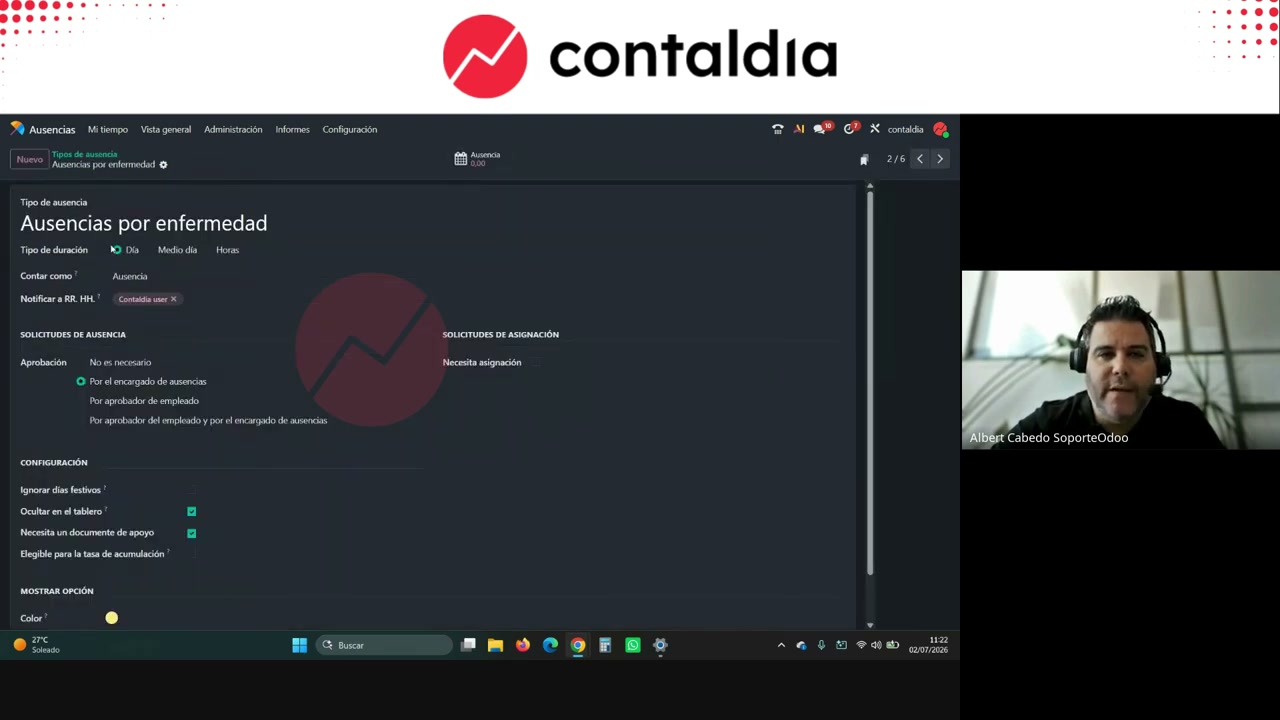
Sick leave: no quota. The medical certificate is attached and it is checked that it is on file.
Public holidays and days when nothing is taken
Configuration → Public holidays. Demo example: January 6, 2026, Epiphany (Reyes Magos), national. These holidays count or not depending on the time off type.
Mandatory days: nobody can request time off. At Contaldia, July (many taxes); vacation in August or June; quarter months don't allow vacation.
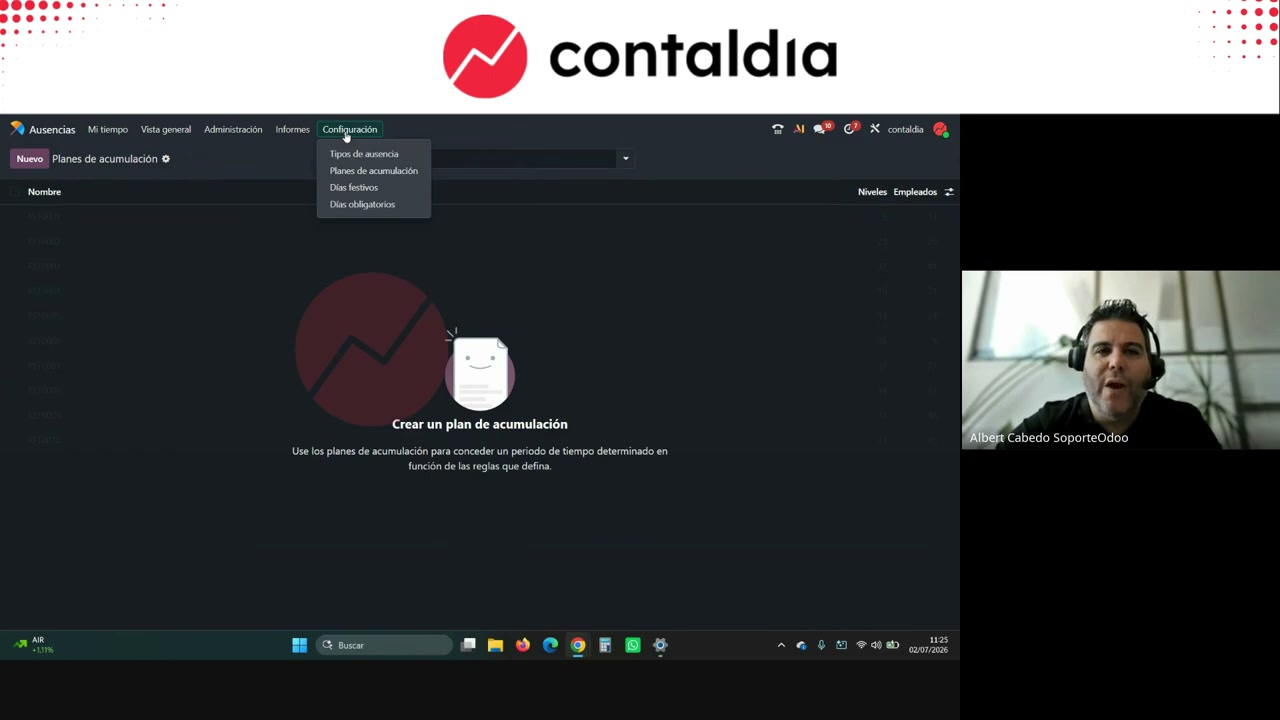
Holidays of the year. Then the type decides whether it ignores them or not.
Allocate the days (admin)
Telling Marcos he has 23 working days (demo figure) from January 1, 2026 to January 31, 2027 is one thing. Him requesting the Pyrenees week is another. The first is the allocation. The second is the time off request. The person who distributes the quota and the person who approves the day can be different people. If the type requires allocation, without a quota there is no request.
Administration → allocations → New. Vacation type, employee (or all), days, validity period, notes ("minimum full week, start on Monday"). Approve. Check allocated days. The current balance doesn't move yet: it only subtracts what has already been taken.
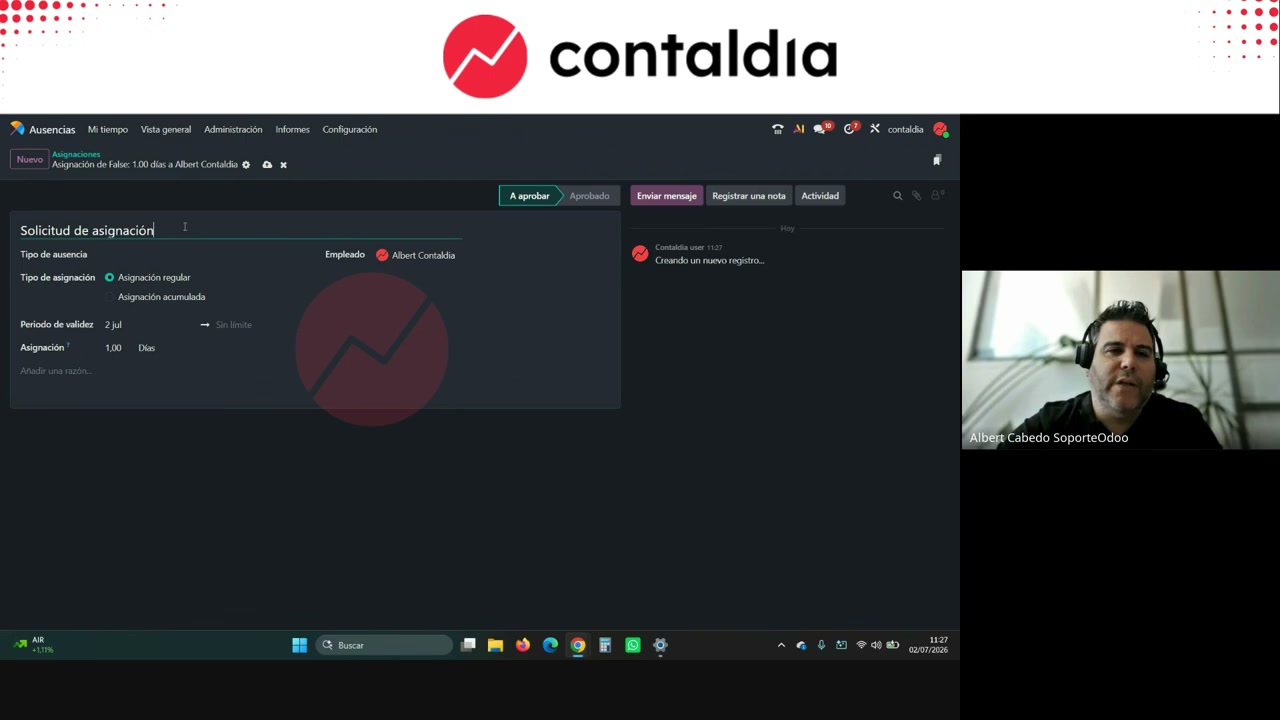
Allocation for Marcos León: 23 demo working days, validity 2026. Albert makes an identical one for himself and approves them.
Request and approve
The employee (dashboard or My Time Off) creates the request, comment, attachment if the type requires a supporting document. In the demo: last week, "I'm off to the Pyrenees". The June calendar appears striped = pending.
The manager goes in through Administration. Notification, chatter with the employee, approve or reject. Approved: the hatched pattern stays. Rejected: struck through. Public holidays appear in the legend.
Dashboard after allocating: 23 days available, 0 pending allocations (demo). After five days in June, Albert's balance goes down to 18 of 23. He requests the 3rd to the 23rd (summer), it is approved, and the balance stays at 18 of 23 because August hasn't arrived yet (they are in July). In the overview, June and August are both visible. If he requests more than he has (Odoo Experience in Belgium), the system won't allow it: it warns that there aren't that many days.
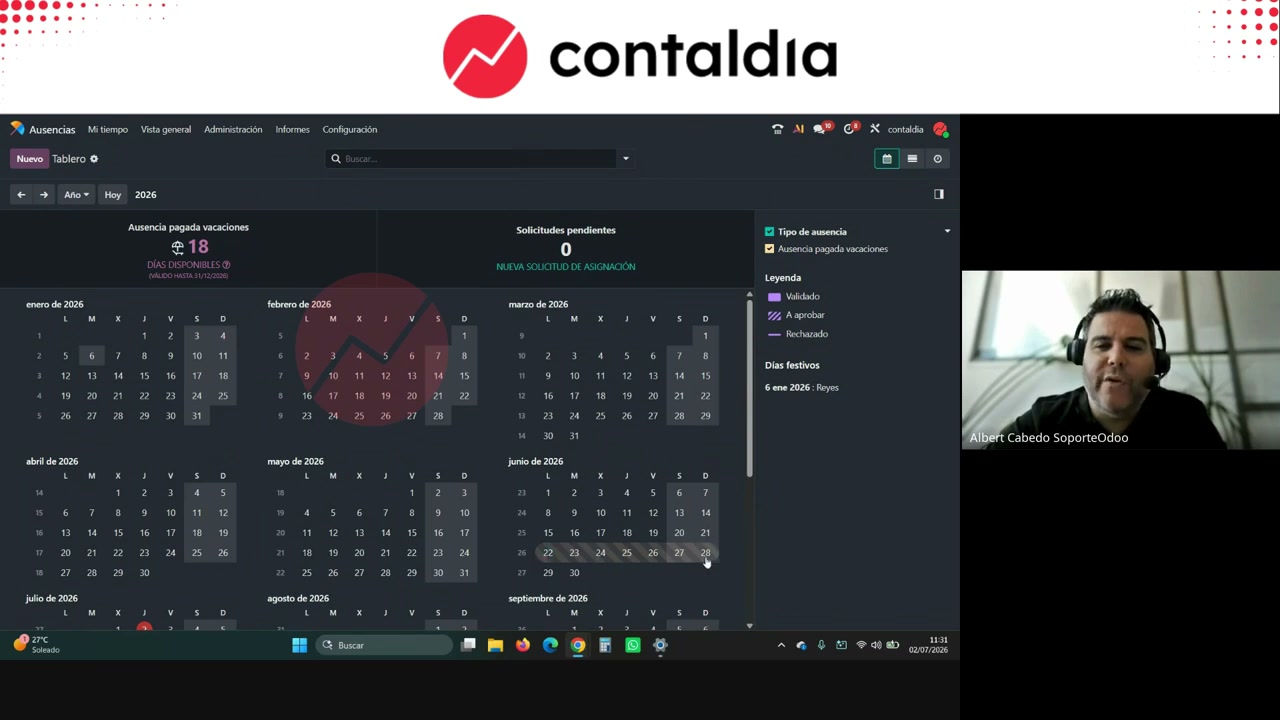
Hatched = pending. The attach button appears because supporting document was ticked in the type. The current balance is not the planning.
Sick leave and unpaid leave
Sick leave: no allowance. It is logged (example: one day for COVID) and the medical certificate is attached. What is validated is that it happened; no allowance is distributed. You can create as many as needed.
Unpaid: for anything that is neither vacation nor sick leave (IT). Long-term sick leave: the form asks for a start and an end to calculate it. You edit the same absence or open another one. Albert prefers one continuous period (a three-day COVID absence) over three separate Mondays, which is not the same thing.
Company closure
If the company closes for a week, the employee doesn't have to request it. Option A: the admin creates the vacation absence for each person. Option B: a "company vacation" type without "requires allocation", assigned by company. In the demo, the 3rd to the 9th, closed; it generates both at once.
In the Q&A, Albert splits the type: employee vacation (with allowance) and company vacation (no allocation, for the closure). In allocation you can choose one employee or all of them, so you don't have to go one by one.
See the team
Reports by employee and by type (pivot tables), filtered by year, month, quarter or week. Overview. Calendar view, Google or Teams style: who is away and whether two people overlap on the same Monday. Albert sticks with the calendar. Save the default view.
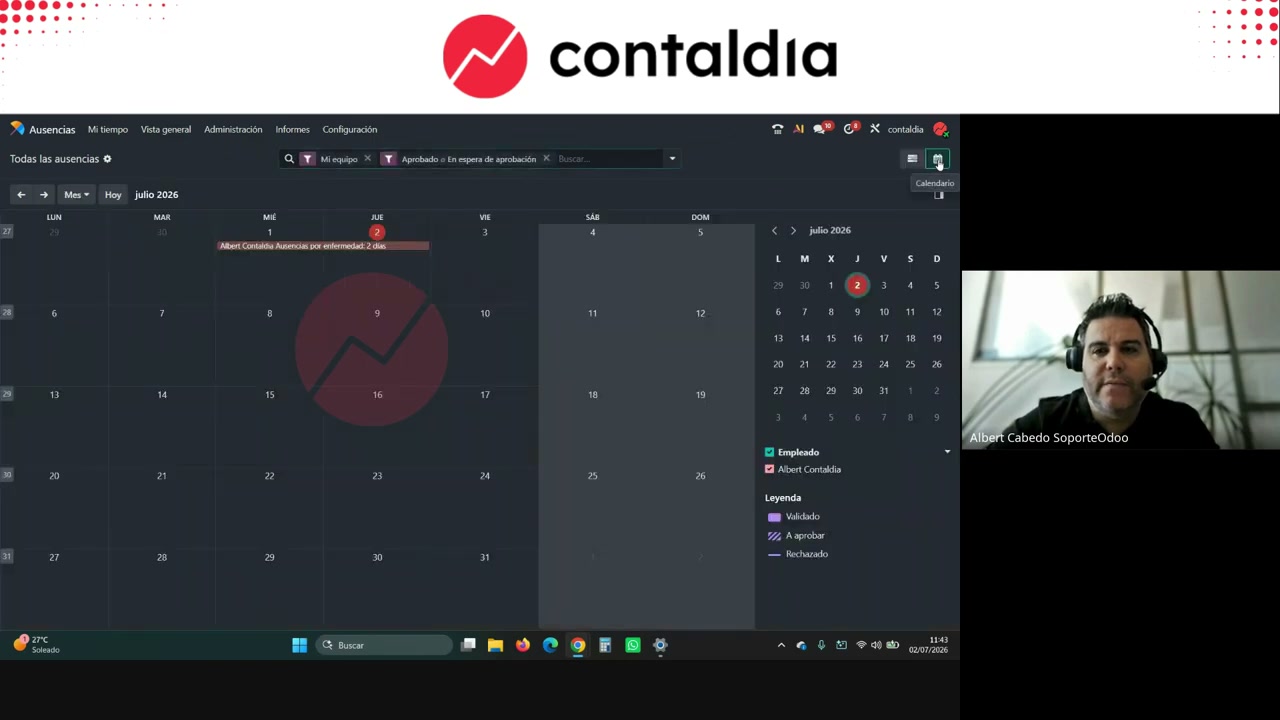
Team calendar. The view Albert sticks with.
Proof of vacation
Leave a trail of what has been taken. If, in a dismissal, the worker says they haven't taken their days and there is no signature or record, the company may have to pay for them. Two ways Albert mentions: signed paper ("I'm going on vacation from such a date to such a date") or the payslip for information purposes. It is not a button in the module.
The module is quick to learn. What usually goes wrong is the collective agreement poorly translated into the type, or the balance read as if it were the planning. The video lasts 38 minutes and shows the whole process, questions included.
Vacations in Odoo, without a parallel Excel
Video: YouTube · more sessions at youtube.com/@ContalDia. Courses: contaldia.com.
Implementation or HR: info@contaldia.com · 931 94 94 80.